A credit note allows you to correct or adjust an invoice that has already been issued — for example, where there has been an overcharge, a payment made outside the system, or an invoice created in error.
It acts as a formal adjustment to the original invoice, clearly documenting why the change was required. A credit note reduces the amount owed on the invoice but does not involve any movement of money.
Because a credit note does not move cash, it can only be applied while an invoice still has an outstanding balance. Once an invoice has been fully paid, cash has already been applied and the balance settled, so it cannot be reduced using a credit note.
In situations where funds need to be physically returned, a Reimbursement Invoice should be used instead.
In Rex PM, credit notes can be applied to all invoice types, including rent, supplier invoices, and agency fees, provided there is still an outstanding balance. For rent-related invoices, some credit note types can also advance the rent position, updating how far ahead a tenant has paid.
When You Might Use a Credit Note
Common situations where a credit note helps you adjust invoices while keeping records accurate include:
- An error is identified on an invoice that has already been paid, and the correction is applied by discounting a future invoice rather than adjusting the paid invoice
- An invoice has been issued but is still outstanding and needs to be adjusted or partially written off
- A tenant, landlord, or supplier was charged incorrectly
- A payment was made outside Rex PM and needs to be recorded against an outstanding invoice
- A discount or rent reduction applies after invoicing
- You need to write off an unpaid amount that won’t be recovered
Types of Credit Notes
Each credit note type affects your accounts and rent position differently. Choose the option that best fits the situation.
| Type | When to Use It | Effect on Rent Paid-To-Date | Example Scenario |
|---|---|---|---|
| Bad Debt / Write Off | When an amount is no longer recoverable — usually after a tenancy ends. | 🚫 Does not advance rent paid-to-date. | A former tenant leaves owing rent that won’t be paid. |
| Funds Already Held | When funds for this invoice were already received or recorded (e.g. from another system or trust account). | ✅ Advances rent paid-to-date. | The rent payment was already received before moving to Rex PM. |
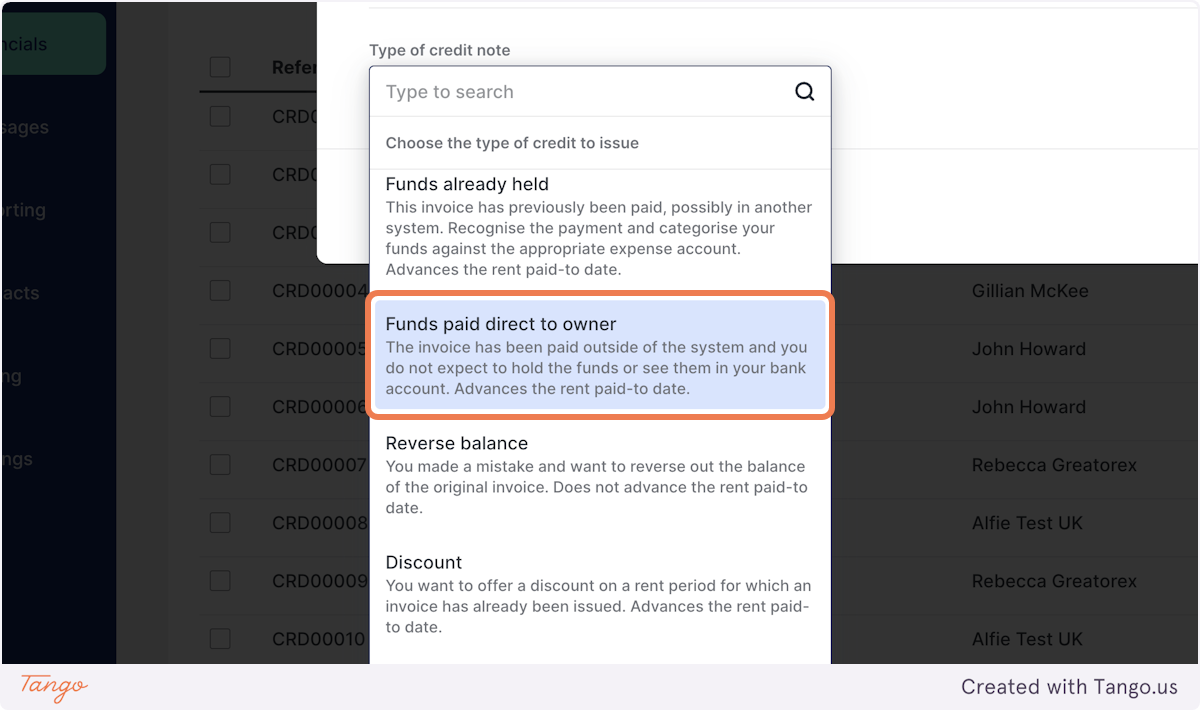
| Funds Paid Direct to Owner | When the tenant or payer paid the landlord directly outside Rex PM and the money won’t appear in your trust account. | ✅ Advances rent paid-to-date. | A tenant transfers rent directly to the landlord’s account. |
| Reverse Balance | To completely cancel an incorrect invoice. | 🚫 Does not advance rent paid-to-date. | An invoice was created for the wrong amount or period. |
| Discount | To apply a discount or rent reduction on an already issued invoice. | ✅ Advances rent paid-to-date. | You offer a rent discount after a maintenance issue. |
| Custom | For unique or one-off credits that don’t fit other types. | ✅ Advances rent paid-to-date. | A tenant completes agreed work in exchange for partial rent credit. |
| Custom: Do Not Advance Rent Paid-to-Date | For manual adjustments or end-of-tenancy credits that shouldn’t affect rent. | 🚫 Does not advance rent paid-to-date. | Clearing a remaining balance after a tenancy has ended. |
How to Issue a Credit Note
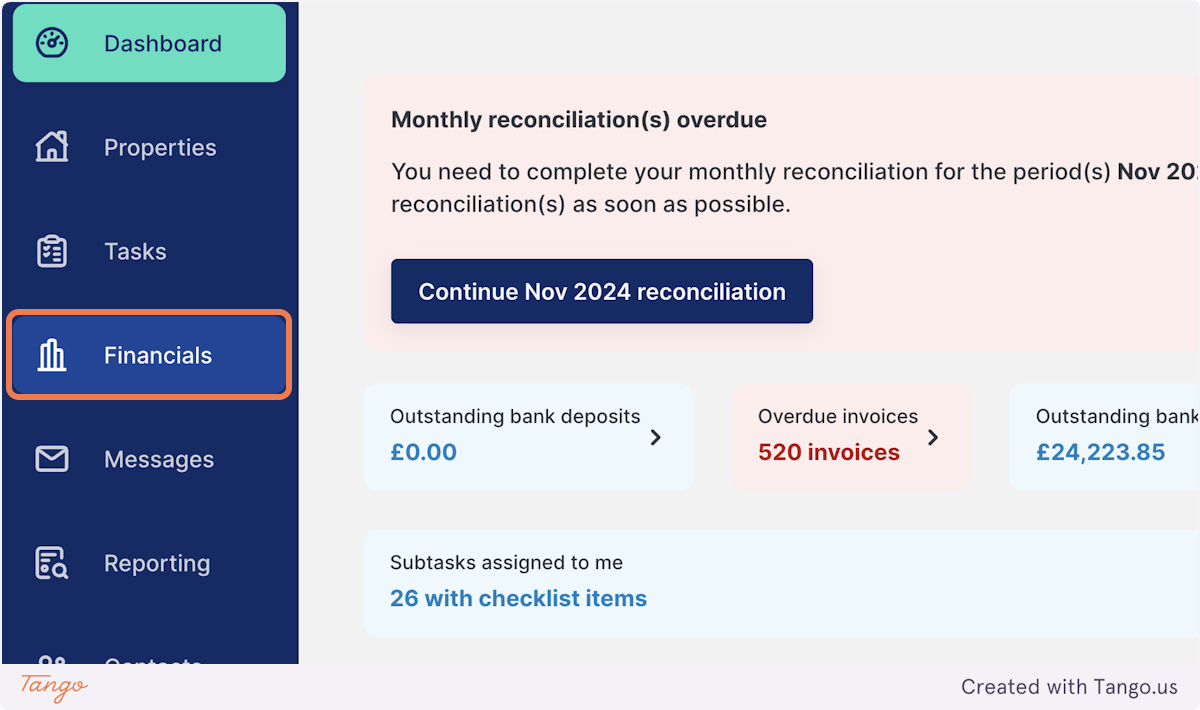
1. Click on Financials
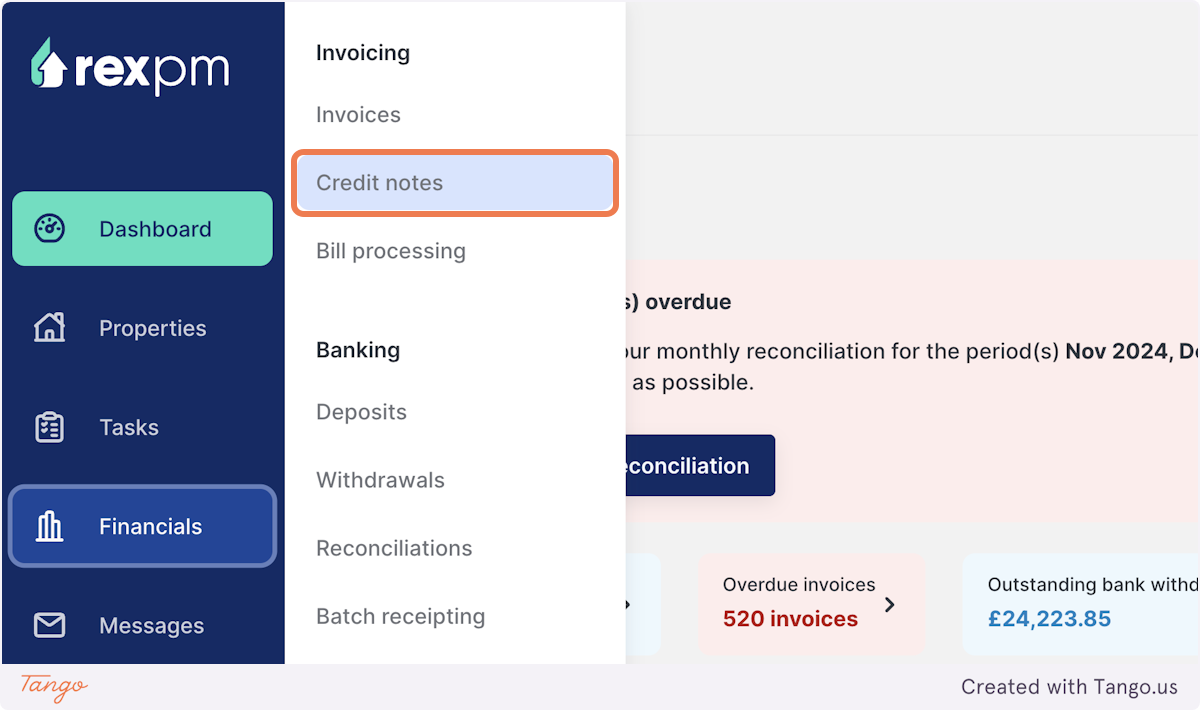
2. Click on Credit notes
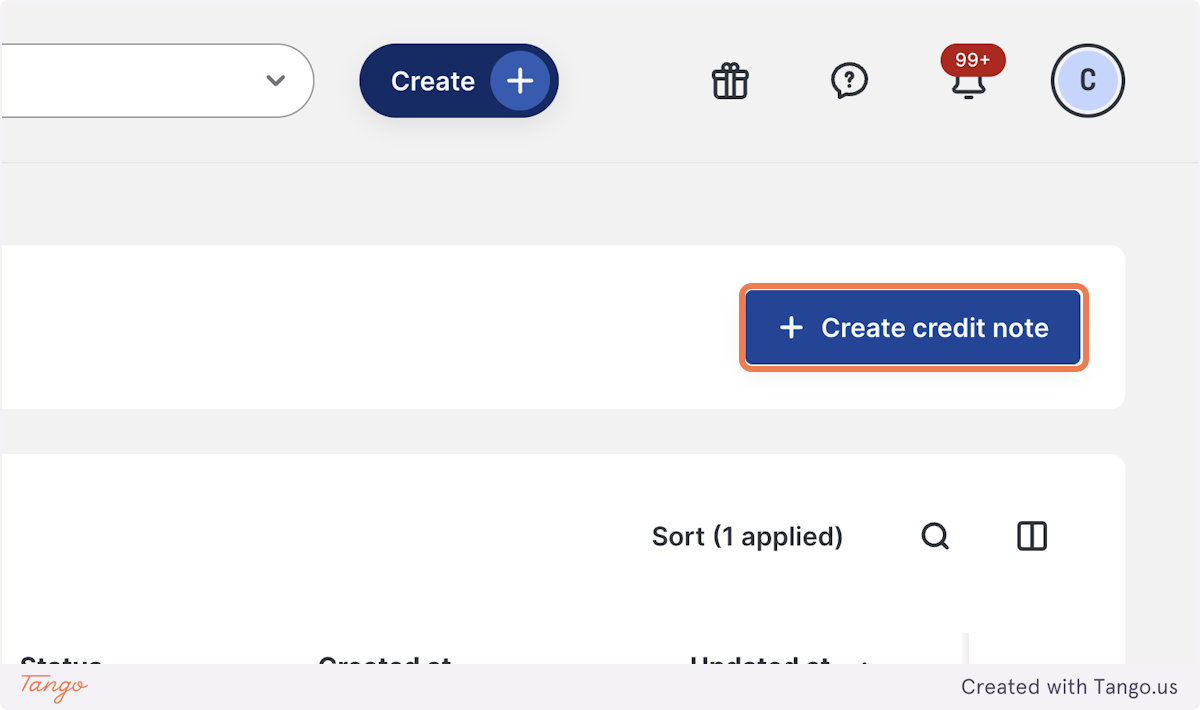
3. Click on Create credit note
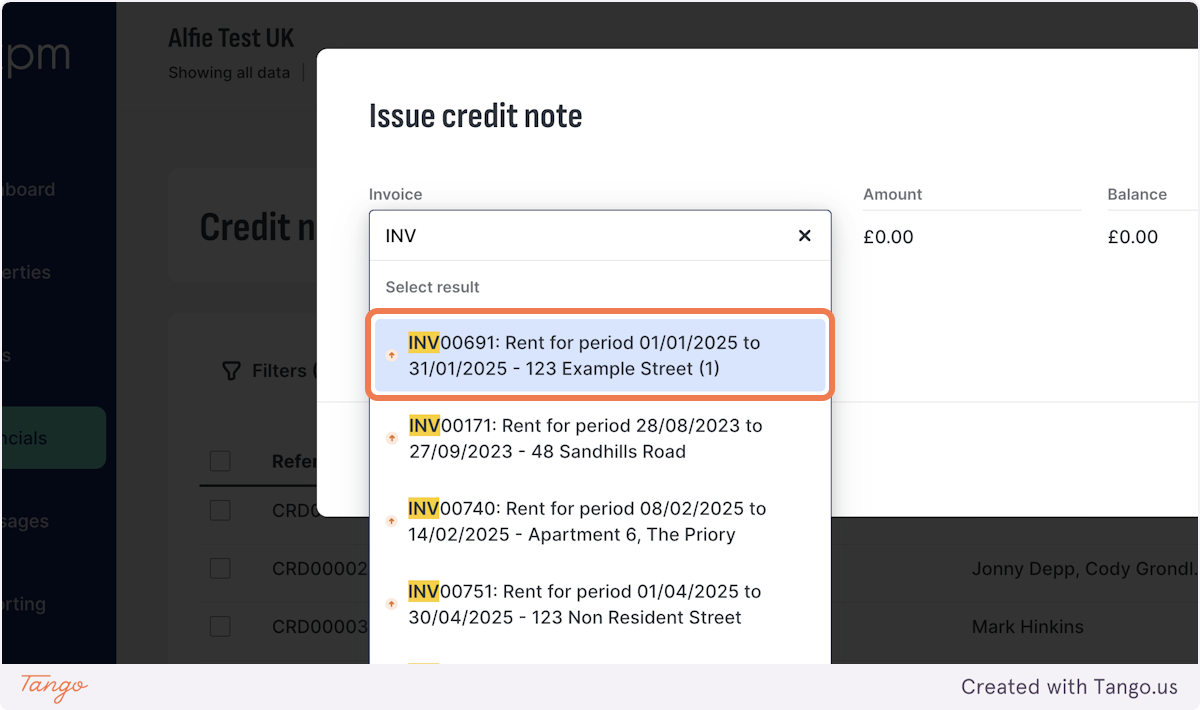
4. Find the invoice you want to apply the credit note to
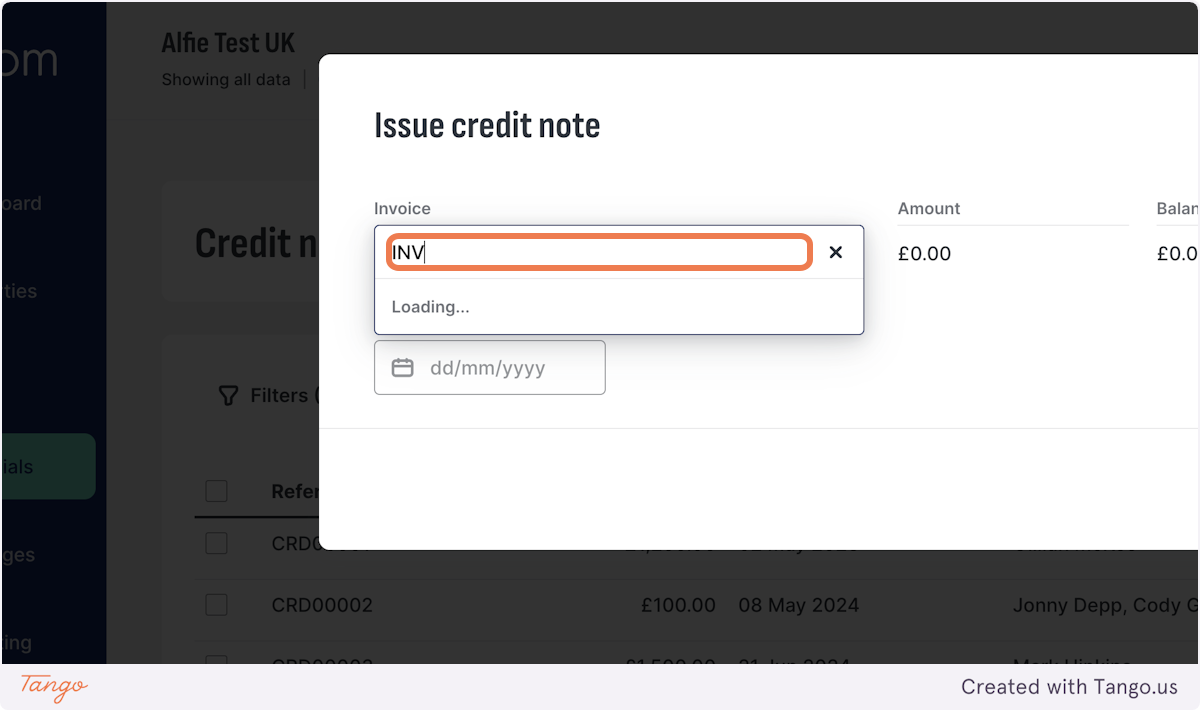
5. Find the invoice that you would like to apply the credit note to
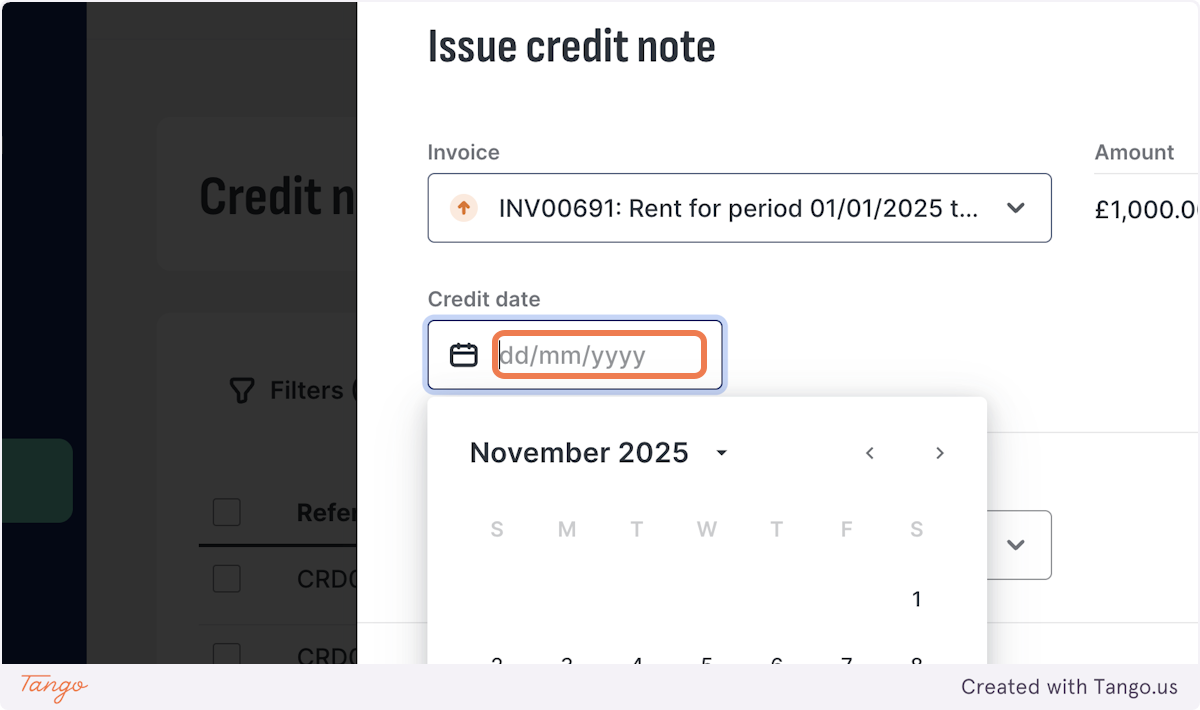
6. Select the date when the credit note applies to
7. Select the type of credit note
8. Type in a reason for the credit note
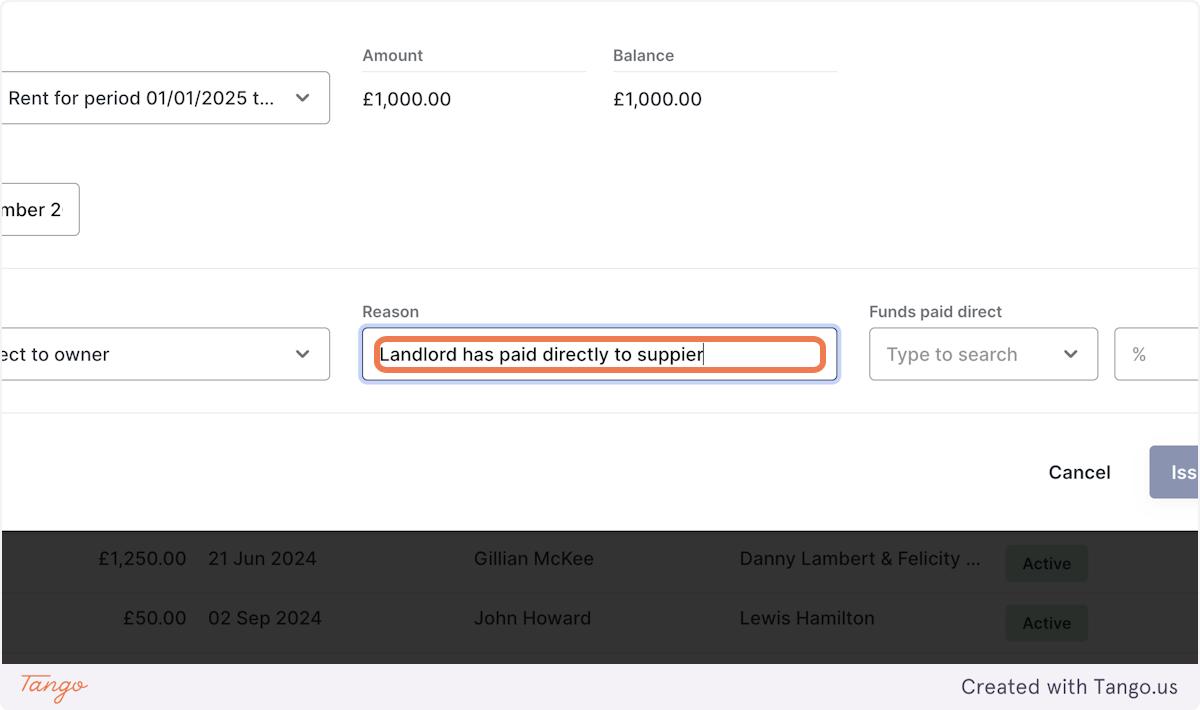
9. State how you would like to apply the credit note
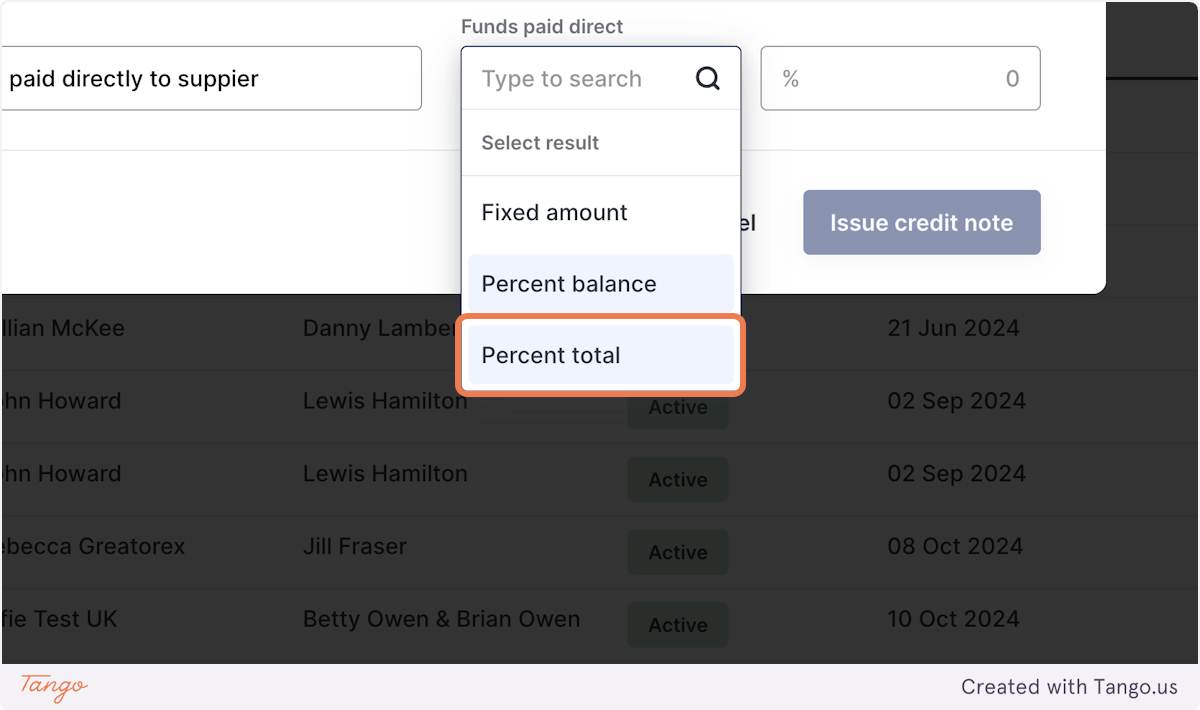
10. Select the amount or percentage
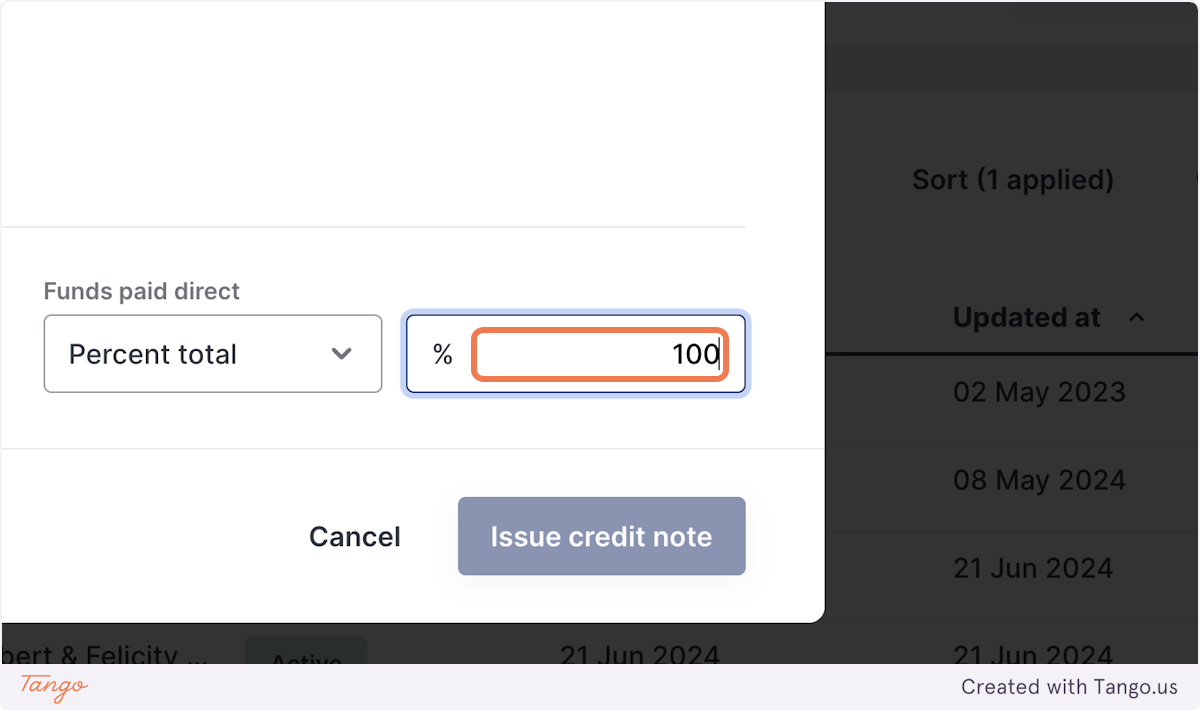
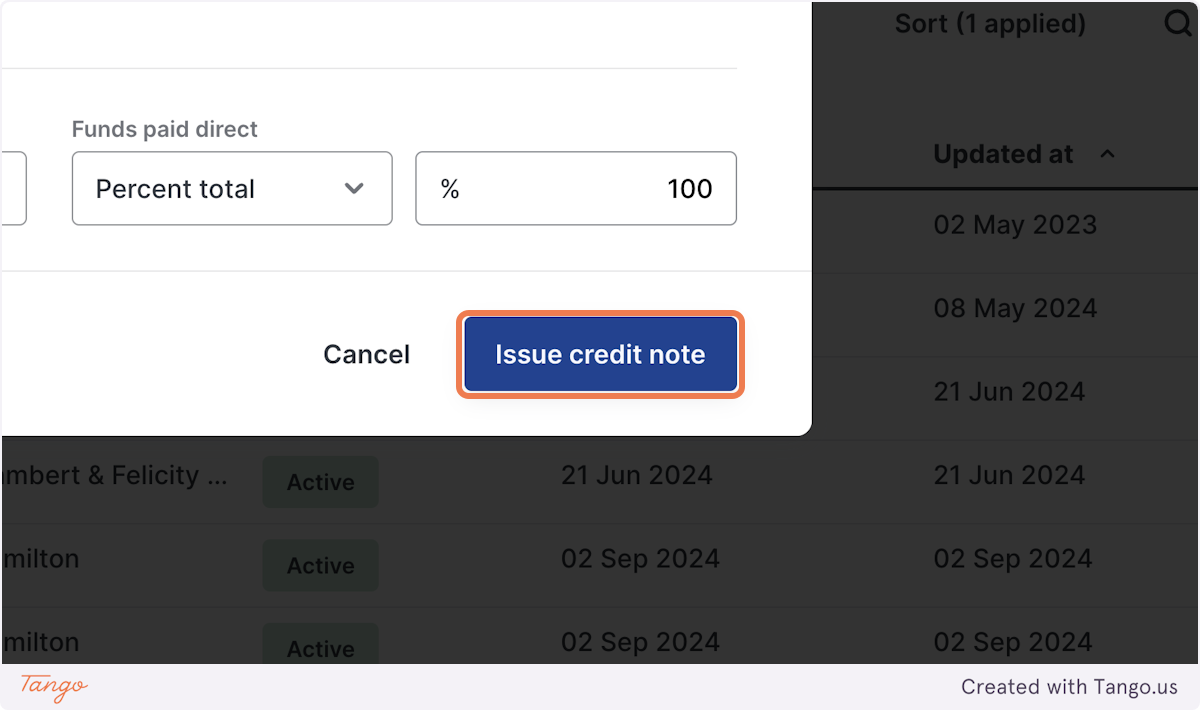
11. Click on Issue credit note
Best Practices
- Choose carefully: The credit type determines whether rent paid-to-date advances or not.
- Be transparent: Always include a clear reason for every credit.
- Avoid deleting invoices: Credit notes are the correct, auditable way to make adjustments.
- Use “Custom” only when needed: Select it when no other credit type applies.
- Double-check before advancing rent: Review whether advancing the rent position is appropriate for the situation.